
Telemedicine
We offer telemedicine visits on a daily basis.
All you need is a computer, tablet or smart phone, and we can now make a virtual “house call.”
During your visit, you will meet with your Northside Pediatric provider via Klara (a HIPPA compliant platform for face-to-face video chat). We will discuss your child’s symptoms, evaluate your child with your help, give medical advice, and electronically send in necessary prescriptions. We can even do these visits for our patients out of town, and kids in college!
Some of the illnesses that we can treat safely through these virtual visits include:
- Gastroenteritis (“stomach bug”)
- Rashes
- Acne
- Minor Injuries
- Seasonal Allergies
- Suspected Sinus Infections/Colds
- Medication Management for ADHD & Mood Disorders (for established patients currently being treated for these diseases)
To schedule a telemedicine visit, call our office. After a brief symptom screening to ensure the visit is appropriate for telemedicine, your child will be booked into an appointment timeframe (i.e. 2:00 – 2:30p). After booking, you will get a Phreesia Appointment Notification with a "Telemedicine Consent Form" which must be signed before the visit starts.
At the time of your visit, you will receive a text message with a link to join your telemedicine visit. You can then join the visit using any device with a camera, microphone and internet connection.
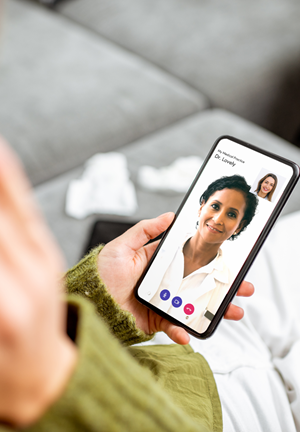
Instructions for patients to join a video visit on their phone.
Written by Paige Leeman/Klara
Take the following steps to join a video visit with your provider:
1) Prepare for your video visit. A few minutes before the scheduled session:
- Make sure that the device you are going to use for your visit has a good connection to your internet or WiFi service.
- Make sure that you are in a well-lit room where the provider will be able to see you and hear you.
2) Open the message from your provider and verify your DOB.
Tap the link to the text message from your provider that included instructions about your video visit.
From here, you will verify your DOB before you can join the visit. You will only need to do this if you are new to Klara, or it's been 30 days since you last verified your DOB.
Tap the link that says "Your Video Visit."

You may receive a text like this at the time of your visit, or just before your visit with your provider letting you know they're ready to begin. Tap the link in the text to join the visit from your phone.
Tapping the link to join the visit will open a new browser window. You'll need to use the following browsers for the video visit to work successfully:
- iPhone or iPad: Use a Safari browser.
- Android: Use a Chrome browser.
3) Accept browser permissions. If it is the first time you are using Klara for a video visit, you may need to allow your browser to access your camera and microphone. Tap "Allow" when you're prompted.
4) Check your settings. Check to make sure that your microphone and camera are working, and that your device has a strong connection. When you're ready to start the visit, tap "I'm Ready".
If your provider hasn't joined the visit yet, you'll see a message letting you know that they'll be with you shortly.
5) Join the visit! As soon as your provider joins, you'll be placed in the visit with them